Baby’s first birthday is such a special milestone. One of my favorite ways to celebrate it is with a photo banner that shows how much baby has grown during their first year. It’s sweet, meaningful, and it makes the cutest decoration for a first birthday party. If you’re looking for an easy baby first year photo banner Cricut project, this tutorial walks you through the entire process using Cricut’s Print Then Cut feature. Let’s get started!
Some of the links in this post may be affiliate links – That means I may earn a small commission if you purchase through them at no extra cost to you. I only recommend products I personally use in my projects.
Baby’s First Year Photo Banner with Cricut
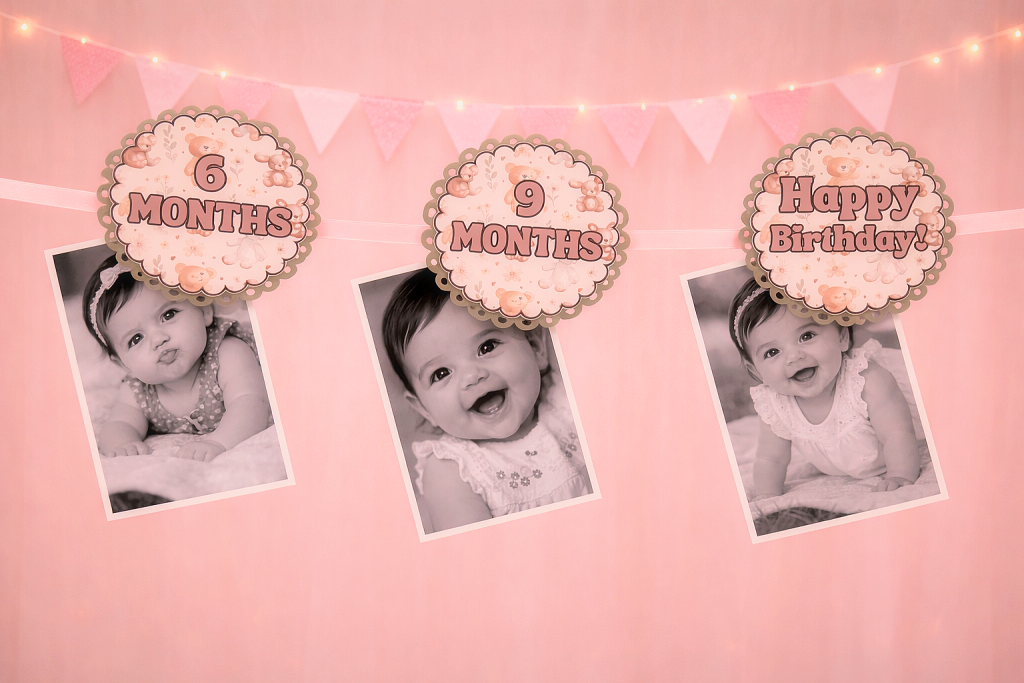
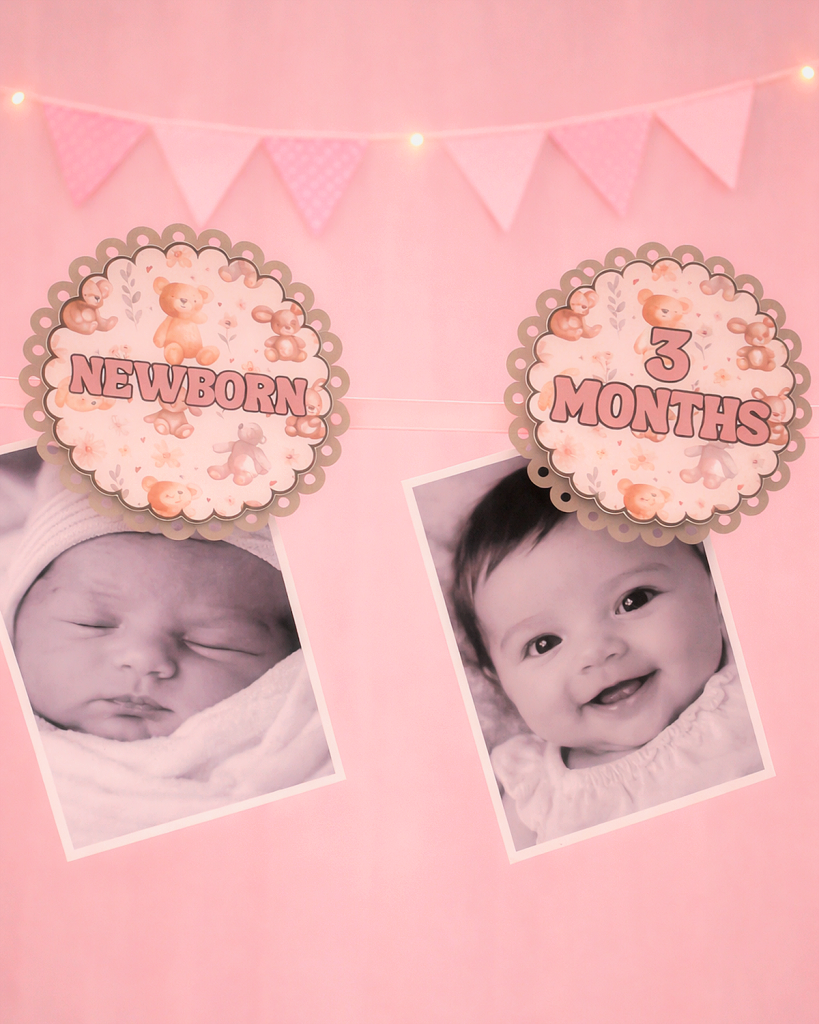
This banner displays photos from newborn through 12 months, and the badges clip right onto ribbon so they can hang as party decor. It’s simple to make, but the finished banner looks like something you’d see at a professionally styled birthday party.

Supplies Needed
To make this Baby’s First Year Photo Banner, you will need:
- Cricut cutting machine
- Cricut Design Space
- Printer (I used my inkjet printer)
- Photo cardstock or heavy cardstock
- Photo Paper for photos
- Light Grip Cricut mat
- Scissors
- Ribbon or twine
- Clothespins (I get mine at Dollar Tree)
- Hot Glue and Foam Tape (optional)
- Baby photos from newborn to 12 months
You will also need the free milestone badge download, which I’ll show you how to get below.
Get the Free Baby Milestone Badge Download
I designed a gender neutral set of milestone badges that work perfectly for this banner. The set includes:
- Newborn
- 1 month through 12 months
- Half Year
- One Year
- Happy Birthday
These badges are formatted to work with Cricut Print Then Cut so they cut cleanly around the scalloped edges.
To download the file, sign up for my Studio Letter, where I share new projects, creative ideas, and occasional freebies for subscribers.
Sign Up Here to Get the Download
Once you sign up, you’ll receive access to the Baby Milestone Badge PNG files so you can upload them into Cricut Design Space and make your own banner.
Check out the video tutorial below:
Step 1: Upload the Milestone Badges to Cricut Design Space
- Open Cricut Design Space and click Upload.
- Upload the PNG badge files from the download.
- Select Flat Image when prompted so Cricut keeps all of the colors and details in the design.
- Once uploaded, insert the milestone badges onto your canvas.
Step 2: Resize the Badges
You can resize the badges depending on the look you want for your banner. I found that around 3.5 to 4 inches wide works really well.
This size is large enough to read easily when the banner is displayed but still fits comfortably within the Print Then Cut area.

Step 3: Add an Offset Border
- To give the Cricut a clean cut line around each badge, I like to add a small offset.
- Select the badge and click Offset in Cricut Design Space.
- Create a small offset around the badge shape. This creates a smooth border for the Cricut to cut around and gives the finished pieces a more polished look.
- Once you’re happy with the offset, select the badge and the offset together and click Flatten so Cricut recognizes the design as a Print Then Cut image.
Step 4: Print the Badges
- Click Make in Cricut Design Space.
- Your badges will appear within the Print Then Cut boundary box. This ensures that Cricut can scan the printed sheet and cut each badge accurately.
- Send the design to your printer and print the sheet on photo cardstock or heavy cardstock.
- Photo cardstock works especially well because it produces vibrant colors and gives the badges a professional finish.
Step 5: Cut the Badges with Your Cricut
- Place the printed sheet onto a Light Grip mat.
- Load the mat into your Cricut and follow the prompts in Design Space.
- Your Cricut will scan the registration marks on the printed page and cut around each badge automatically.
- Once cutting is complete, remove the badges from the mat.
- I also cut some decorative circles out of cardstock to add dimension. Simply search scalloped circle in Cricut Design Space and find one you like to match your style. I sized mine to about 4.2 inches diameter.
Step 6: Prepare the Photos
Print your baby photos from newborn through 12 months.
Step 7: Assemble the Photo Banner
- Cut a length of ribbon or twine long enough for your banner display.
- Attach the milestone badges to the ribbon using mini clothespins.
- Then clip the matching photo beneath each badge.
Your banner should now show the entire first year: Newborn → 1 month → 2 months → 3 months → all the way to 12 months.
This makes such a sweet visual display of how much baby has grown during the first year.
Optional Embellishment Ideas
If you want to dress up your banner even more, you can add a few simple embellishments.
For a softer look, try:
- Lace ribbon instead of plain ribbon
- Small paper lace doilies behind the badges
- Foam adhesive dots to give the badges dimension
These small details can make the banner look even more special for a first birthday party.
Displaying the Banner at the Party
This banner can be displayed in several ways:
- Hanging across a dessert table
- Above a highchair for smash cake photos
- Along a wall behind the gift table
- Draped across a fireplace mantle
Because it shows the full first year of photos, it quickly becomes one of the most talked-about decorations at the party. Guests love seeing how much baby has grown!
Why I Love This Cricut Project
I used to make banners like this when I first started my Etsy shop, and they were always a big hit with customers. Back then I didn’t use my Cricut and it took a lot longer to make. What I love about making them with Cricut now is that the Print Then Cut feature makes the process so easy. Once the designs are uploaded, Cricut handles the cutting perfectly. It’s one of those projects that looks impressive but is actually very beginner-friendly.
Save This Project for Later
If you’re planning a first birthday party or know someone who is, be sure to save this project for later. It’s a meaningful decoration that also becomes a keepsake after the party.
If you make this Baby’s First Year Photo Banner, I’d love to see it! Feel free to tag me or share your project so I can check it out.
Happy crafting!

- Unlocking Sublimation: A Guide to Sublimation
- Sublimation Oven or Cricut Mug Press – Which is Best?
- HTVRONT Auto Heat Press Product Review
- Cricut Maker VS Cricut Maker 3 – Which Cricut Machine is Right for you?
- Cricut Glue Gun Product Review
- How to Sublimate Frosted Glass Can Tumblers with the Cricut Mug Press
- How to Sublimate Tumblers with the Cricut Mug Press
- How to Sublimate on Wood With or Without a Sublimation Printer