If you’ve ever switched mats over and over just to cut different colors, you already know how much time that wastes. There’s a much easier way to do it and I’m excited to show you how, so let’s get started!
Some of the links in this post may be affiliate links – That means I may earn a small commission if you purchase through them at no extra cost to you. I only recommend products I personally use in my projects.
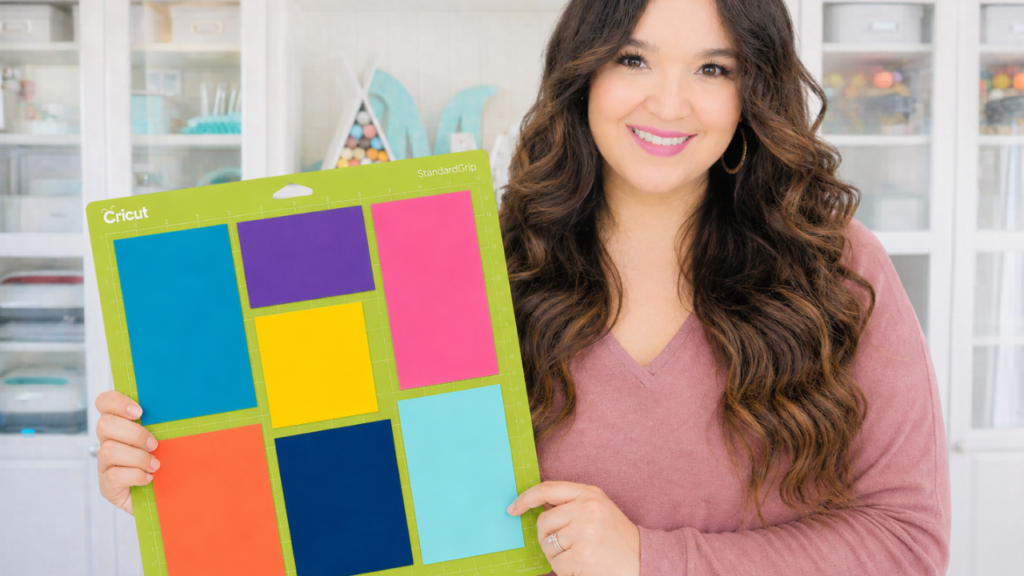
How to Cut Multiple Colors on One Cricut Mat
Instead of constantly swapping mats or using SnapMat, you can place everything on one mat and cut it all in one pass. This method saves time, reduces material waste, and makes your workflow a lot smoother.
In this tutorial, I’m going to show you exactly how I do it using a layered design.
Why This Method Works
When you send a project to cut in Cricut Design Space, it automatically separates everything by color onto different mats. That’s helpful in some cases, but if you’re working with multiple colors, especially smaller pieces.it can turn into a lot of extra steps.
The goal here is simple:
Get everything onto one mat so you can cut it all at once.

Step 1: Prepare Your Design in Cricut Design Space
I’m using a layered design with multiple colors (a Mickey die cut I’ll be using in another project), but this works with any multi-layer design.
Each color shows up as a separate layer:
- white offset
- black base
- flesh tone face
- red
- yellow
- small detail pieces
When you click “Make It,” Cricut Design Space will automatically place each color on its own mat. That’s what we’re going to change.
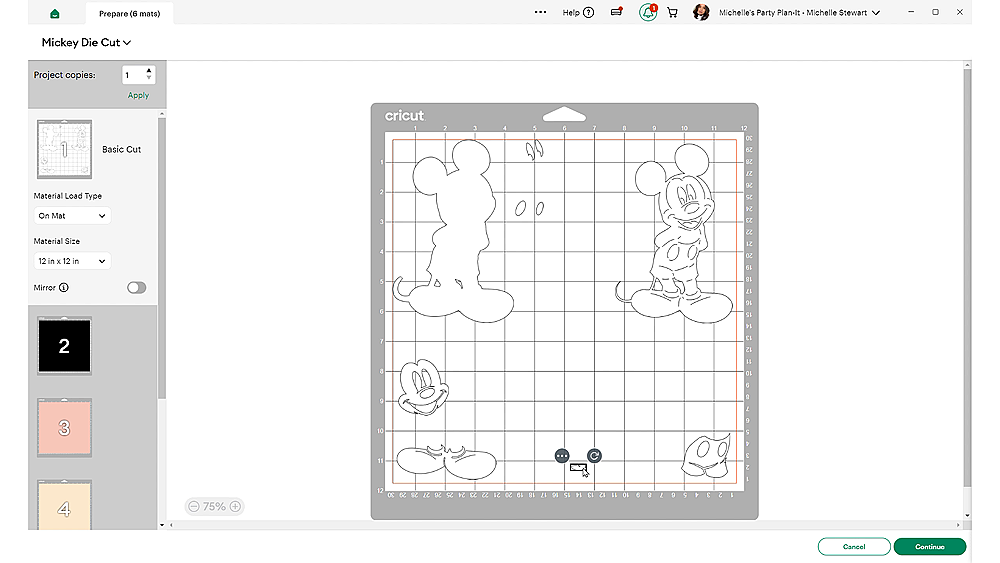
Step 2: Move All Colors Onto One Mat
Start with one mat (I like to use the white layer as my base), then move all other elements onto that same mat.
To do this:
- Select a layer
- Click “Move Object”
- Move it to your main mat
Repeat this for every color.
As you move each piece over, start placing them intentionally on the mat:
- use the corners first
- leave space between elements
- keep everything easy to visually track
This is where your layout matters.
Step 3: Arrange Your Layout Strategically
Once everything is on one mat, arrange your pieces so they don’t overlap.
A simple way to do this:
- place larger pieces in the corners
- use open space in the center for smaller elements
- give yourself a little margin from the edges
You don’t need to be perfect, but your layout in Design Space needs to match what you’re going to do physically on your mat.
Step 4: Set Your Material
Since I’m working with cardstock, I’m using:
- LightGrip mat (blue)
- Medium cardstock setting
- Slightly increased pressure (for thicker cardstock)
At this point, all the extra mats will disappear since everything is now on one sheet.
Learn more about what mat to use when HERE.

Step 5: Place Materials on Your Mat
Now recreate your layout using real materials.
This is where everything comes together.
Using your Design Space layout as a guide:
- place each color in the correct position
- match the quadrants as closely as possible
- make sure each piece is large enough for the design
This is also a great way to use scrap materials.
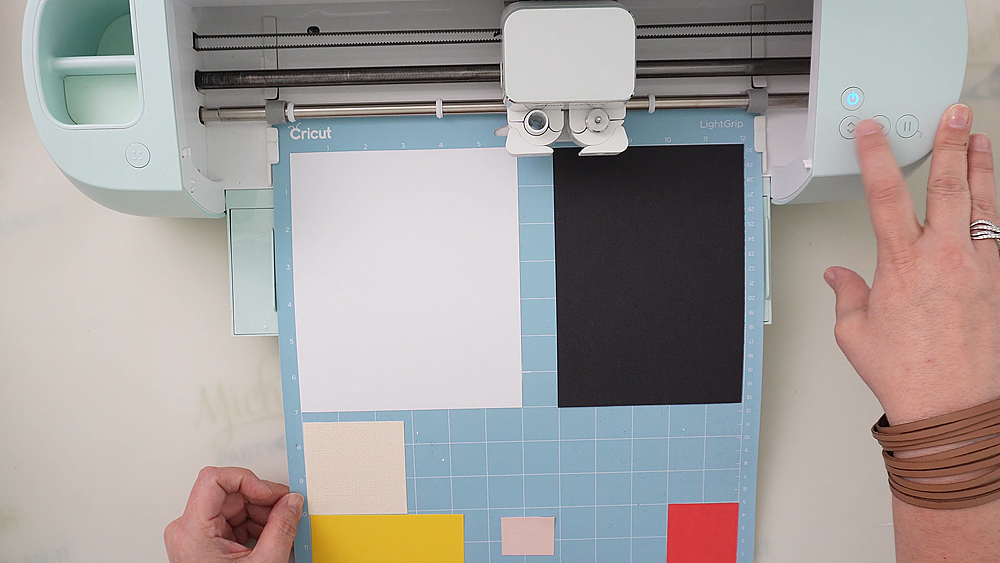
Step 6: Load and Cut
Load your mat into your Cricut machine and start the cut.
This method works with:
- Cricut Explore series
- Cricut Maker
- Cricut Joy and newer models
Everything will cut exactly where you placed it—as long as your layout matches.
Step 7: Remove Your Pieces Cleanly
Once your cut is finished:
- remove your materials carefully
- peel by bending the mat backward (not pulling the paper up)
This helps prevent curling, especially with cardstock.
For small pieces, like tiny details, you can use tweezers to lift them cleanly.

Step 8: Quick Assembly
If you’re working with layered designs, you can assemble them right away.
Some designs even include built-in guides to help align pieces.
For paper projects, I like using:
- Fabri-Tac glue for a strong, clean hold

Final Result
You end up with all your pieces cut in one pass, no swapping materials, no reloading mats.
This method:
- saves time
- reduces waste
- simplifies your workflow
And once you get used to it, it becomes second nature.
Watch the Full Tutorial
You can see the full process step-by-step in the video here:
This is one of those Cricut techniques that makes a big difference with very little effort.
If you’re working with layered designs or multiple colors, cutting everything on one mat is one of the easiest ways to streamline your projects.
If you try it, you’ll probably never go back to cutting one color at a time.
Happy Crafting!


- How to Make a Reusable Sticker Sheet from Sticker and Laminate Backing Sheets
- DIY Clear Acetate Composition Notebook Cover
- Peel-A-Pocket™ Adhesive Pockets for Journals, Scrapbooks, Bibles and More
- How to Customize a Half-size Composition Notebook for Bible Journaling
- DIY Bible Notes Journal from a 50-Cent Composition Notebook
- How to Design a Scrapbook Layout in Cricut Design Space