If your Cricut struggles to read the Cricut Print Then Cut registration marks, you’re not alone. Those small printed guides are the key to helping your machine cut your designs with perfect precision, but even a little glare, misalignment, or poor lighting can throw things off. If you’re making stickers, labels, or printable vinyl projects, learning how to properly set up and troubleshoot your registration marks is the secret to clean, professional-looking results every time.
Disclosure: This post contains affiliate links and I will be compensated if you make a purchase after clicking on my links, at no additional cost to you.

Cricut Print Then Cut Registration Marks
Cricut’s Print Then Cut feature lets you print full-color designs on your home printer and then have your Cricut cut them with perfect precision. It’s ideal for stickers, laminated bookmarks, printable vinyl projects, and more. I have a full tutorial on how to use it, check it out HERE.
Note: All Cricut machines have Print Then Cut capabilities, EXCEPT the Cricut Joy.
In the past, Cricut printed a thick black rectangle around your design called a sensor box, which the optical sensor used to locate the image. With the latest Design Space updates, Cricut now uses corner registration marks instead of a full box. These smaller marks are printed in each corner of the page, which allows faster reading, saves ink, and reduces the chance of glare from glossy materials.
If your lighting, paper type, or print setup isn’t ideal, Cricut may show an error like “Cannot read sensor marks” or cut slightly off, leaving uneven borders. But with a few simple adjustments, you can get back to clean, professional cuts.

Why Cricut Might Miss the Registration Marks
When Cricut struggles to detect the registration marks, it usually comes down to one or more of the following:
-
Lighting that’s too dark or too bright
-
Glare from glossy, metallic, or laminated paper
-
Faded or streaky corner marks due to low ink
-
Paper not aligned perfectly on the mat
-
Dust, fingerprints, or residue near the sensor area
Once you understand what’s causing the problem, it’s easy to fix with the right setup.

Tips for Accurate Registration Mark Reading
1. Set Up the Right Lighting
Cricut’s optical sensor needs to clearly see the small corner marks, but too much light can be just as bad as too little. Aim for soft, even lighting across your workspace.
If your Cricut sits under a bright ceiling light or near a sunny window, close the blinds or shift the machine slightly. A diffused desk lamp works best. Avoid direct light on glossy paper or laminated sheets. The goal is balanced light without glare.
2. Choose Matte Materials When Possible
Matte paper or vinyl is always the easiest for Cricut to read. Glossy surfaces can reflect light and confuse the sensor, especially with the newer, smaller corner marks.
Some great options include:
-
HTVRONT Matte Printable Vinyl for bold color and sharp detail
-
Cricut Matte Sticker Paper for stickers and labels
-
Avery Matte Full-Sheet Labels for planner projects
If you prefer glossy finishes, don’t worry. You can still get perfect cuts with a simple trick.
3. The Matte Tape Trick
If your Cricut has trouble reading glossy or laminated sheets, try the matte tape method. Place a small piece of matte Scotch tape or masking tape directly over each printed corner mark.
Press gently so there are no air bubbles. The matte finish removes shine so the Cricut’s sensor can detect the marks accurately. This works beautifully on laminated bookmarks, holographic vinyl, and shiny sticker paper.
4. Recalibrate When Needed
If your cuts are off-center even though the marks are being read, your Cricut might need recalibration.
To recalibrate:
-
Open Menu (☰) in Design Space.
-
Choose Calibration → Print Then Cut.
-
Print the calibration sheet and follow the on-screen steps until your cuts align perfectly.
Recalibrate any time you switch printers, paper types, or notice cuts that don’t match your print lines.
5. Print at 100% Scale
Make sure your printer settings are set to “Actual size” or “100%”. If your printer automatically scales the design, the registration marks won’t match what Cricut expects.
Always:
-
Turn off “Fit to Page” or “Shrink to Fit”
-
Use standard 8.5 x 11-inch paper
Even a slight scaling difference can cause Cricut to misread the marks.
6. Keep Your Mat and Sensor Clean
Dust or residue can interfere with Cricut’s optical sensor. Every few weeks, gently wipe the sensor window (below the tool carriage) with a clean, dry cloth. Avoid alcohol wipes, as they can leave a film.
Clean your mats regularly, too. If your mat surface becomes shiny or slick, Cricut’s sensors might pick up reflections. A quick rub with a cotton t-shirt helps dull the shine.
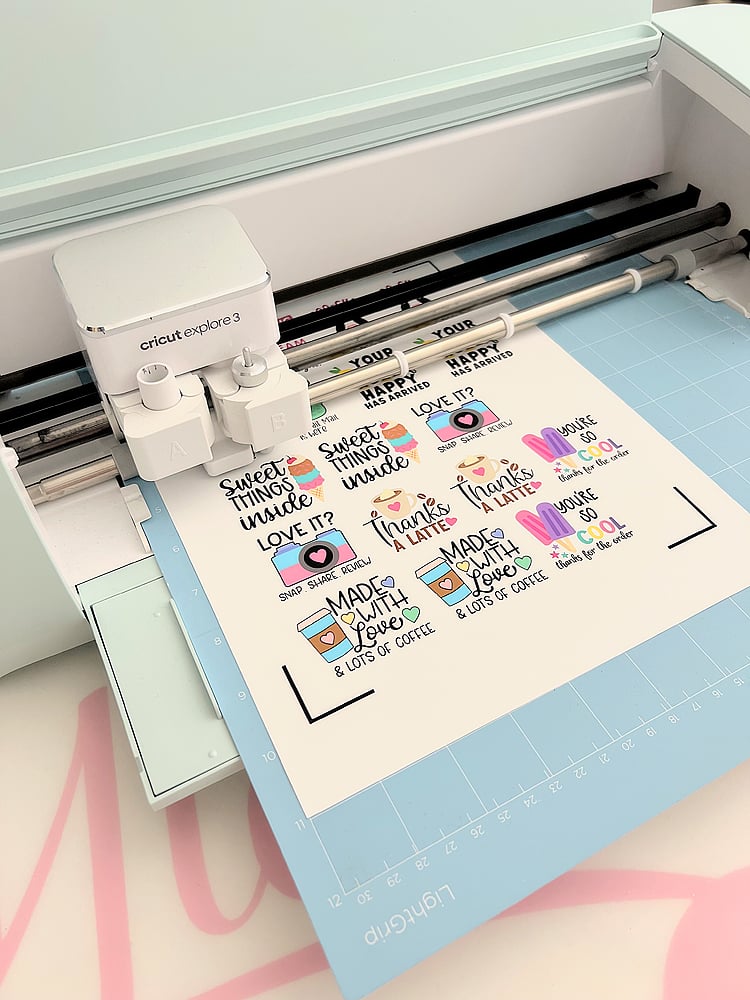
7. Use High-Quality Print Settings
Cricut’s new corner marks are small, so print clarity is even more important. In your printer settings, select:
-
Best or High Quality mode
-
The correct paper type
-
A dark black ink setting (no draft mode)
If your marks print too light, go over them carefully with a fine-tip black sharpie, staying inside the lines.
8. Align the Paper Exactly on the Mat
Your printed page should be placed flush with the top-left corner of your cutting mat. Use the grid lines as a guide and smooth the paper flat.
If your mat isn’t sticky enough, use painter’s tape on the corners of the page, keeping the tape well away from the registration marks.
9. Trim Uneven Edges
If your printer leaves an uneven margin, trim the edges before loading the sheet. Cricut expects the registration marks to be centered relative to the page, and trimming helps the sensor locate them correctly.
10. Use Matte Laminates for Waterproof Projects
If you’re creating waterproof stickers or bookmarks, choose a matte laminate instead of glossy. Matte laminates prevent glare and work perfectly with Cricut’s updated corner detection system.
11. Avoid Busy Backgrounds
Make sure your printed design doesn’t crowd or overlap the corner marks. Leave a small white border around each mark so the Cricut’s optical eye can see them clearly.
12. Save Your Best Setup
Once you find a combination that works perfectly, take notes. Record your lighting, printer settings, and material type. Keep a sample print that cuts accurately so you can replicate the setup easily next time.
Common Myths About Cricut Print Then Cut
Myth 1: Cricut can’t cut laminated or glossy designs
The Truth: It can, as long as the marks are visible to the sensor. Using matte tape or a matte laminate prevents glare and gives the sensor a clear target.
Myth 2: You can print on any paper size
The Truth: You can print on various sheet sizes, but Cricut limits the cuttable area based on your machine and the paper setting in Design Space. Each model has its own maximum print size. Check Cricut’s official chart before printing so your design fits within the available cut zone.
Myth 3: More light helps the sensor read better
The Truth: Too much light causes glare that interferes with the sensor. Soft, even light without reflections gives the best results.
Myth 4: Calibration is only needed once
The Truth: Regular calibration ensures perfect alignment. Anytime you switch printers, change paper, or notice a shift in cuts, run calibration again.
Myth 5: The Cricut cuts the entire printed page
The Truth: The corner registration marks define a smaller cuttable area. Cricut leaves margins around the edges to ensure accurate reading, so your image may appear slightly smaller than your printed page.
Myth 6: The registration marks are always the same
The Truth: Cricut automatically adjusts the placement of the corner marks based on your paper size and machine. If your design extends outside the safe cutting zone, Design Space will warn you before printing.

Cricut’s Print Then Cut feature has come a long way, and the new corner registration marks make it faster, more precise, and less prone to glare issues. Once you fine-tune your lighting, paper type, and calibration, you’ll be amazed at how clean your cuts turn out.
Keep your workspace consistent, use matte materials whenever possible, and print with clear, bold marks. With a little practice, you’ll be cutting perfectly aligned designs every single time.
I hope this guide helps your print then cut experience.
Happy Crafting!

Verse of the Day:
Jesus said to her, “I am the resurrection and the life. The one who believes in me will live, even though they die; and whoever lives by believing in me will never die. Do you believe this?” – John 11:25-26

- Unlocking Sublimation: A Guide to Sublimation
- Sublimation Oven or Cricut Mug Press – Which is Best?
- HTVRONT Auto Heat Press Product Review
- Cricut Maker VS Cricut Maker 3 – Which Cricut Machine is Right for you?
- Cricut Glue Gun Product Review
- How to Sublimate Frosted Glass Can Tumblers with the Cricut Mug Press
- How to Sublimate Tumblers with the Cricut Mug Press
- How to Sublimate on Wood With or Without a Sublimation Printer