If you’re trying to decide between the Cricut Explore 4 vs Cricut Explore 3, you’re not alone. Since Cricut released the Explore 4, I’ve been getting a lot of questions asking whether it’s actually better—or if the Explore 3 is still good enough.
If you already own an Explore 3, upgrading isn’t an automatic yes. And if you’re shopping for your first Cricut, the differences matter. So in this post, I’m breaking down exactly what’s new with the Cricut Explore 4, how it compares to the Explore 3, and who should (and shouldn’t) upgrade.
Disclosure: This post contains affiliate links and I will be compensated if you make a purchase after clicking on my links, at no additional cost to you.
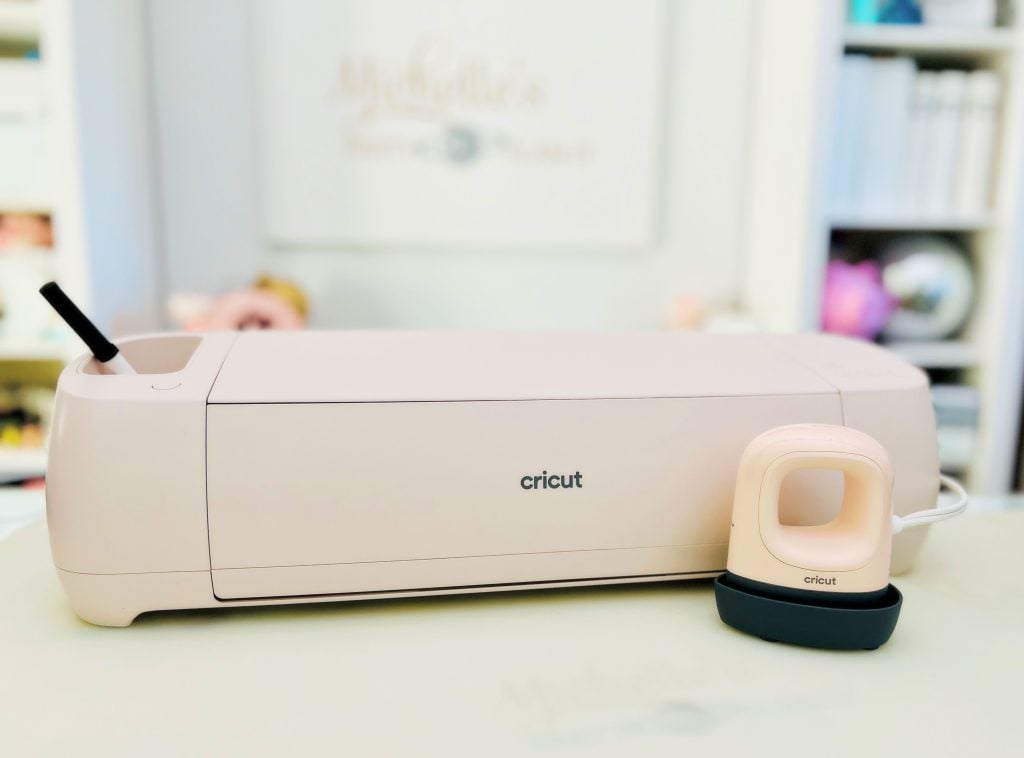
Cricut Explore 4 vs Cricut Explore 3: What’s the Difference?
At first glance, these machines look very similar, and that’s because they are. The Explore 4 builds on the Explore 3 rather than replacing it with something completely new.
Here’s what hasn’t changed:
-
Both cut over 100 materials
-
Both work with Cricut Smart Materials (no mat required)
-
Both use the same blades, pens, and tools
-
Both rely on Cricut Design Space
-
Both are excellent for vinyl, iron-on, cardstock, and sticker projects
The real upgrades come down to speed, performance, and efficiency.
What’s New With the Cricut Explore 4?
Faster Cutting Speeds
The biggest upgrade with the Cricut Explore 4 is speed. Cricut states that it can cut up to twice as fast as the Explore 3 on certain materials. In real-world use, this is most noticeable when you’re cutting longer designs or repeating projects back-to-back.
If you batch cut vinyl decals, labels, or cardstock, this speed difference can save a lot of time.
Smoother and More Precise Cuts
The Explore 4 feels more refined during cutting. It moves more confidently, especially on detailed designs, and handles curves and small elements with less hesitation.
It’s not a dramatic visual change, but it feels smoother when you’re actually using it.
Improved Smart Material Performance
Both machines cut Smart Materials, but the Explore 4 handles long, continuous cuts more consistently. Alignment feels more stable, which matters if you’re cutting wall decals, signs, or long vinyl phrases.
Same Tools, No Replacements Needed
One of my favorite things about upgrading to the Explore 4 is that you don’t have to rebuy your tools. Your blades, pens, scoring tools, and accessories from the Explore 3 all work with the Explore 4.
Print Then Cut: How the Explore 4 Compares to the Explore 3
One of the most common follow-up questions I get is whether the Cricut Explore 4 improves Print Then Cut compared to the Explore 3, especially for stickers, labels, and detailed printed designs.
The short answer? The core Print Then Cut features are the same, but the experience can feel slightly smoother on the Explore 4.
Both the Explore 3 and Explore 4:
-
Support Print Then Cut in Cricut Design Space
-
Work with inkjet printers (you print first, then cut on the Cricut)
-
Use the same Print Then Cut size limits
-
Are great for stickers, planner pages, labels, and printable vinyl
So if you’re upgrading only because you think Print Then Cut is brand new on the Explore 4, that’s not the case.
Where the Explore 4 Feels Better
That said, the Explore 4’s updated performance does make Print Then Cut projects feel a bit more refined:
-
Faster cutting once the mat is loaded, which helps when you’re doing multiple sticker sheets
-
Smoother movement around small details, especially on intricate sticker designs
-
More confident cuts on laminated or thicker printable materials
If you sell stickers or regularly batch Print Then Cut projects, those small improvements can add up over time.
Is Print Then Cut a Reason to Upgrade?
Here’s my honest take:
-
If you already use Print Then Cut successfully on the Explore 3, you’re not missing out on new features.
-
If you do a lot of Print Then Cut (especially for business use) the Explore 4’s speed and smoother cutting may be worth it.
-
If you’re a casual sticker maker, the Explore 3 still does an excellent job.
Print Then Cut isn’t new on the Explore 4, but it does benefit from the machine’s overall performance upgrades.
Cricut Explore 4 vs Cricut Explore 3 Comparison Chart
Here’s a side-by-side breakdown to make the differences easy to see:
| Feature | Cricut Explore 3 | Cricut Explore 4 |
|---|---|---|
| Materials Cut | 100+ | 100+ |
| Smart Materials | Yes | Yes |
| Matless Cutting | Yes | Yes |
| Cutting Speed | Fast | Up to 2× faster |
| Precision | Very good | Improved precision & smoother cuts |
| Tool Compatibility | Standard Explore tools | Same tools (no upgrades needed) |
| Best For | Everyday crafting | High-volume & efficiency-focused crafting |
| Design Space | Required | Required |

Is the Cricut Explore 4 Worth Upgrading?
Upgrade to the Explore 4 if:
-
You craft often or run a small business
-
You batch projects or cut large quantities
-
Speed and workflow efficiency matter to you
-
Your Explore 3 is aging or starting to feel slow
If time is money for you, the Explore 4 upgrade makes sense.
Stick With the Explore 3 if:
-
You craft casually or occasionally
-
Your Explore 3 is working perfectly
-
You’re happy with your current pace
-
You’d rather spend money on materials or tools
The Explore 3 is not outdated. It’s still a strong, reliable cutting machine.
My Honest Take
The Cricut Explore 4 isn’t a reinvention, it’s a refinement.
It’s faster, smoother, and more efficient, especially for people who craft regularly or sell their projects. But if you already own an Explore 3 and it meets your needs, there’s no pressure to upgrade right away.
Both machines can create beautiful, professional projects. The Explore 4 just helps you get there faster and with less friction.
I hope this comparison provides you useful information in your decision making process!
Happy Crafting!

Verse of the Day:
I tell you the truth, until heaven and earth disappear, not even the smallest detail of God’s law will disappear until its purpose is achieved. – Matthew 5:18 – NLT

- xTool WonderPress Review: My New Favorite Heat Press?
- xTool Apparel Printer Plus Review: Have I Found My New Favorite DTF Printer?
- How to Make a 3D Composition Notebook with Cricut
- What Caught My Attention at PRINTING United Expo 2026
- How to Emboss Acetate and Composition Notebook Covers
- How to Make a Reusable Sticker Sheet from Sticker and Laminate Backing Sheets