If you’ve been thinking about buying a Cricut Explore 5, or you’ve already brought one home and want to know everything it can do, you’re in the right place!
I’ve been crafting with Cricut machines for years, from the earlier Explore models to the Maker series, and I love finding creative ways to use them for party decorations, handmade gifts, home decor, and more. I recently added the teal Cricut Explore 5 to my craft studio, and I’m excited to share what makes this machine different, which accessories you’ll need, and some of my favorite ways to put a Cricut to work.
If you’re considering your first Cricut or wondering if it’s time to upgrade, this guide will help you make an informed decision.

This post contains affiliate links. If you make a purchase through my links, I may receive a small commission at no additional cost to you.
What Is the Cricut Explore 5?
The Cricut Explore 5 is an electronic cutting machine designed to cut intricate shapes, lettering, and designs from a variety of crafting materials. It works with Cricut Design Space, the software used to create, customize, and send projects to your machine.
With the Explore 5, you can make:
- Custom vinyl decals and labels
- Iron-on designs for shirts and tote bags
- Handmade greeting cards
- Party decorations and favor boxes
- Paper flowers and layered cardstock projects
- Printable stickers
- Personalized gifts
- Home decor
- Holiday crafts
- Classroom and organizational projects
The Explore 5 works with more than 100 compatible materials, including cardstock, adhesive vinyl, iron-on, and printable materials. It also supports writing, drawing, scoring, and foil transfer with compatible tools.
What’s New With the Cricut Explore 5?
The Explore 5 introduces several design and usability changes compared with earlier Explore machines.
A More Compact Design
One of the most noticeable changes is the redesigned machine body. According to Cricut, the Explore 5 has a footprint approximately 30% smaller than previous Explore models.
That’s a welcome change for anyone working in a smaller craft space or sharing a workspace with other creative machines.

Simplified Controls
Cricut redesigned the machine’s controls and introduced a Load & Go feature intended to streamline the process of getting projects started. The Explore 5 also uses Bluetooth Low Energy technology, allowing Design Space to recognize the powered-on machine when it’s within range.
Redesigned Pen Holder
The Explore 5 features a new snap-in pen system. This is an important change if you already own another Cricut machine. The Explore 5 uses Cricut’s newer universal pens and markers, identified by the universal compatibility symbol on the packaging. Older Explore-specific pens do not fit directly into the new machine.
New Scoring Tool
The Explore 5 also includes a redesigned Scoring Tool for creating fold lines in cardstock and paper projects. Unlike earlier Explore models, which used a Scoring Stylus, the Explore 5 uses its new compatible scoring tool. This is especially useful for making greeting cards, paper boxes, party favors, and dimensional paper crafts.
What Hasn’t Changed?
Although the machine has a new appearance and updated controls, the Explore 5 offers largely the same core cutting capabilities as the Explore 4. If you already own an Explore 4, the biggest differences are in the machine’s design and user experience rather than an entirely new range of projects.
What’s Included With the Cricut Explore 5 Essential Bundle?
I purchased the teal Essential Bundle from Michaels. There are several Cricut Explore 5 packages available, so it’s important to compare what’s included before buying.
The Essential Bundle provides additional materials and accessories beyond the standard package.
Machine and Tools
- Cricut Explore 5 cutting machine
- Premium Fine-Point Cutting Tool
- Scoring Tool
- Black dual-sided marker
- LightGrip cutting mat
- Card Mat
- Weeder
- Scraper
- Spatula
- Paper ruler
- Portable trimmer
- Power adapter and included connection accessories
Included Crafting Materials
- Smart Vinyl
- Smart Iron-On
- Transfer Tape
- Value Cardstock
- Insert Cards
- Printable Vinyl
The Michaels version also advertises bonus digital content, including 25 images and one font.

Is the Essential Bundle Worth Buying?
I think bundles are worth considering when they contain materials and tools you’ll actually use. For someone purchasing their first Cricut, the Essential Bundle provides a convenient selection of supplies for trying several different types of projects. You can experiment with adhesive vinyl, iron-on, cardstock, and printable materials without purchasing everything separately. However, if you already have a collection of Cricut mats, vinyl, cardstock, and hand tools, compare the bundle price with the cost of the machine alone.
Shop the Cricut Explore 5:
Getting Started With Your Cricut Explore 5
Before making your first project, you’ll need to set up the machine and connect it to Cricut Design Space.
Step 1: Unpack Your Machine
Remove the packaging materials and place the machine on a stable work surface with enough clearance for your cutting mat or Smart Materials to move through the machine.
Step 2: Connect the Machine
Connect the power adapter and turn on the Cricut Explore 5. The machine supports Bluetooth connectivity for use with compatible computers and mobile devices.
Step 3: Install Cricut Design Space
Download Cricut Design Space from Cricut’s official website or the appropriate app store.
Create an account or sign in with your existing Cricut ID.
Follow the on-screen instructions to select and set up your Explore 5.
Step 4: Complete a Test Project
I recommend starting with a simple cardstock or vinyl project. This gives you an opportunity to become familiar with loading materials, selecting the correct settings, and removing finished cuts. You don’t need to start with a complicated design. A simple project is enough to learn the basic workflow.
What Materials Can the Cricut Explore 5 Cut?
One of the reasons I enjoy working with Cricut machines is their versatility. You can move from paper crafting to vinyl projects and iron-on designs without needing a separate cutting machine for each application.
Cardstock and Paper
Cardstock is one of my favorite materials for making party decorations, handmade cards, favor boxes, and other paper crafts. The Explore 5 can cut many types of compatible paper and cardstock, including patterned and specialty papers.
Adhesive Vinyl
Adhesive vinyl is useful for decorating smooth surfaces and making labels, decals, and personalized gifts. Depending on the project, you can choose removable or permanent adhesive vinyl.
Iron-On Vinyl
Iron-on, also known as heat transfer vinyl or HTV, is used to create designs for fabric items. Popular projects include shirts, tote bags, aprons, and other compatible fabric blanks. You’ll need a suitable heat press or iron to apply the design after cutting.
Printable Materials
The Explore 5 supports Print Then Cut, allowing you to print full-color designs using a compatible home printer and cut around them with your Cricut. This opens up opportunities for making stickers, labels, printable party decorations, and other detailed designs.
Smart Materials
Compatible Cricut Smart Materials can be loaded without a cutting mat. This is particularly convenient when creating vinyl or iron-on projects. For traditional cardstock and other non-Smart Materials, you’ll generally use an appropriate cutting mat.
Cricut Explore 5 Mats: Which One Should You Use?
Choosing the correct cutting mat helps keep your material secure while the machine cuts.
| Mat | Best Uses |
|---|---|
| LightGrip | Lightweight paper, delicate cardstock, and similar materials |
| StandardGrip | Cardstock, vinyl, iron-on, and general crafting materials |
| StrongGrip | Compatible heavier materials that need additional holding strength |
| FabricGrip | Compatible fabric applications |
| Card Mat | Insert cards and compatible card projects |
The Explore 5 supports compatible 12-by-12-inch and 12-by-24-inch cutting mats. For most of my paper crafting projects, I recommend having both LightGrip and StandardGrip mats available.
Cricut Explore 5 Tools and Accessories
The Explore 5 supports several different tools, but not every Cricut accessory is compatible with every machine.
Premium Fine-Point Cutting Tool
This is the tool you’ll use for many everyday projects, including paper, cardstock, vinyl, and iron-on.
Scoring Tool
The scoring tool creates fold lines, making it useful for cards, boxes, and dimensional paper projects.
Deep Cutting Tool
This optional tool is designed for certain thicker compatible materials. Always check Cricut’s material compatibility recommendations before purchasing.
Foil Transfer Tool
The compatible Foil Transfer Tool allows you to add decorative foil accents to projects. This can be particularly useful for invitations, greeting cards, and specialty paper crafts.
Pens and Markers
The Explore 5 uses the newer universal Cricut pen and marker system. When purchasing additional pens, check the packaging for the universal compatibility symbol.
Important: Not all accessories from older Explore machines are compatible with the Explore 5. Verify compatibility before purchasing replacement blades, pens, or scoring tools.
Cricut Explore 5 vs. Explore 4: Should You Upgrade?
If you already own a Cricut Explore 4, you may be wondering whether the Explore 5 is worth purchasing. Both machines support a wide range of popular crafting materials and many of the same project types.
The Explore 5 introduces a smaller machine footprint, redesigned controls, and updated pen and scoring systems. However, if your Explore 4 is working well and you’re happy with its performance, you don’t necessarily need to replace it.
For someone purchasing their first Cricut Explore, the Explore 5 is worth considering because of its newer design and bundled options. I recommend comparing current prices, included accessories, and the projects you plan to make before deciding.
Cricut Explore 5 vs. Cricut Maker: Which One Is Better?
The Explore and Maker machines are designed for somewhat different crafting needs. The Explore series is an excellent fit for popular paper, vinyl, iron-on, and printable projects.
The Maker series supports a broader range of specialized tools and materials.
If your primary interests are party decorations, paper crafts, vinyl decals, and shirts, the Explore 5 may provide everything you need. If you want to work extensively with specialized materials or advanced tools, compare the current Maker model’s capabilities before choosing.
The best machine isn’t necessarily the most expensive one. It’s the machine that supports the projects you actually want to create.
Cricut Explore 5 Project Ideas
Now for my favorite part: making something! There are so many ways to use a Cricut Explore 5 beyond basic decals. Here are some project categories worth exploring.
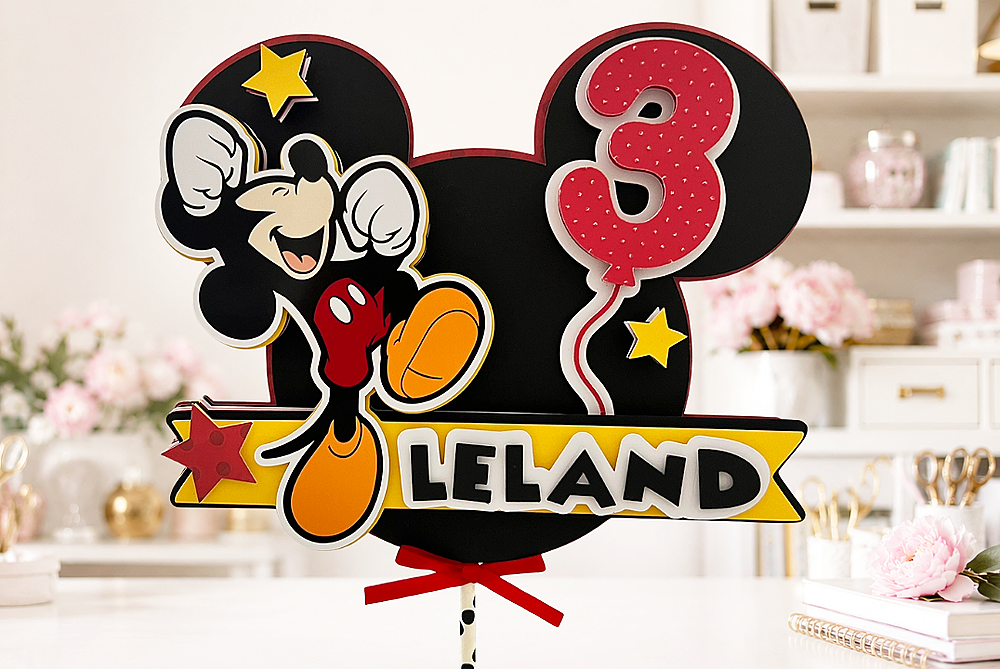
1. Handmade Party Decorations
Create custom banners, cupcake toppers, party signs, and themed decorations.
2. Favor Boxes and Treat Packaging
Cut and score cardstock to make custom boxes, treat holders, and party favors.
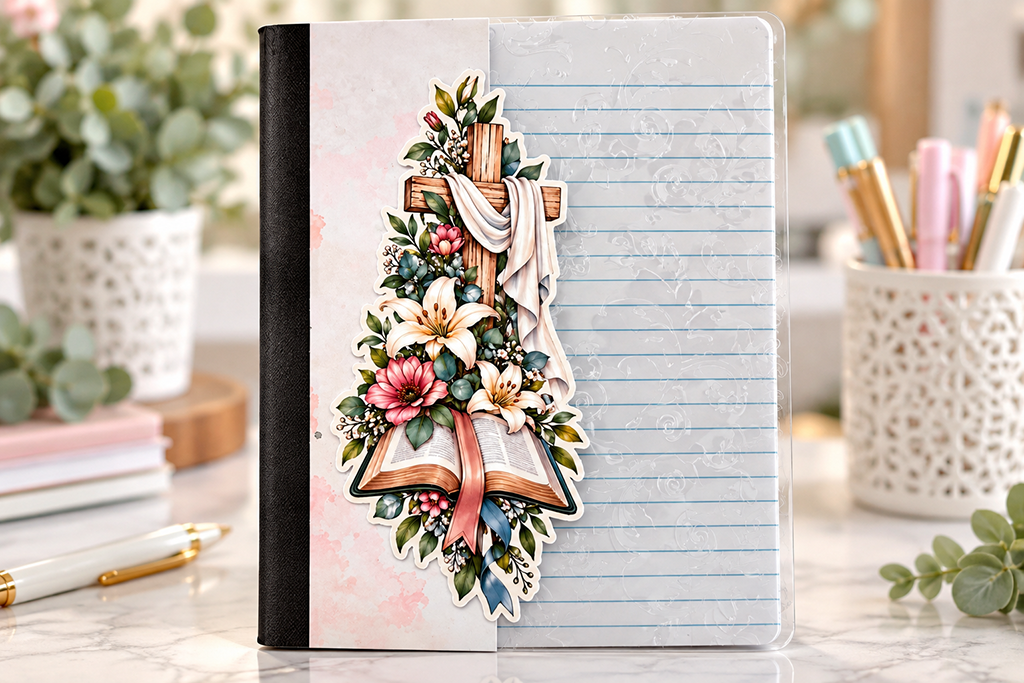
3. Personalized Notebooks
Decorate notebook covers using adhesive vinyl, cardstock embellishments, and other compatible materials.
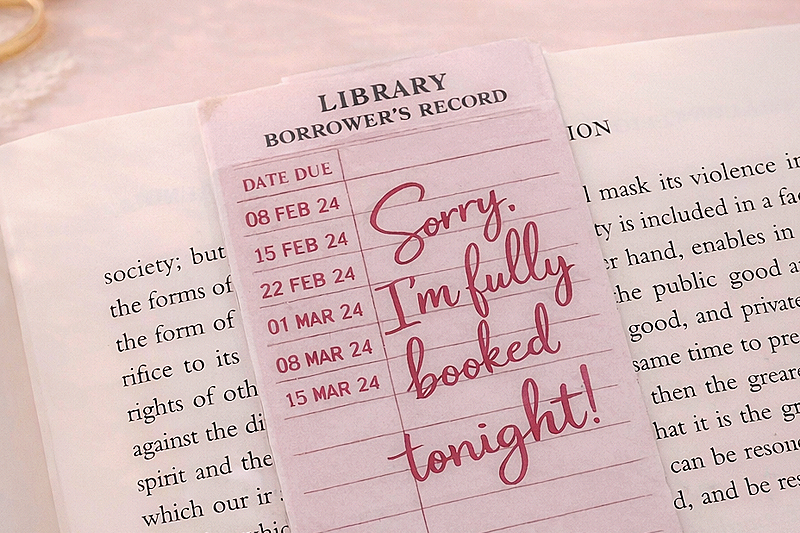
4. Printable Stickers
Combine your home printer and Cricut’s Print Then Cut feature to make colorful stickers.
5. Custom Shirts and Tote Bags
Use iron-on vinyl to create wearable designs and handmade gifts.
6. Handmade Greeting Cards
Combine cardstock, pens, and scoring tools to make cards for birthdays, holidays, and special occasions.
7. Holiday Decorations
Make ornaments, gift tags, paper decorations, and seasonal home decor.
8. Vinyl Labels
Create coordinating labels for storage containers, craft supplies, and organization projects.
9. Layered Paper Crafts
Experiment with dimensional cardstock designs, paper flowers, and layered artwork.
10. Custom Gift Packaging
Use your Cricut to create gift tags, decorative sleeves, and custom packaging.
My Recommended Cricut Explore 5 Supplies
You don’t need to buy every accessory available to start making projects. I recommend building your supply collection around the materials you use most often. For paper crafting, I like having a selection of cardstock, cutting mats, adhesive, and basic paper crafting tools. For vinyl projects, you’ll want compatible adhesive vinyl, transfer tape, and weeding tools. For iron-on projects, you’ll need heat transfer vinyl and an appropriate heat press. And for Print Then Cut, you’ll need a compatible printer and printable materials.
Keep Your Cricut Tools Organized with My 3D Printed Craft Tool Caddy
Keep your favorite crafting tools organized and within reach with my 3D printed craft tool caddies! These handy organizers are perfect for storing weeding tools, scissors, scrapers, brayers, and other crafting essentials. They’re a cute and functional addition to any craft space, and I print them myself using my 3D printers! Available in my Etsy shop.

Shop My 3D Printed Craft Tool Caddy on Etsy
Shop My Favorite Cricut Compatible Essentials
- Cricut Explore 5
- LightGrip Cutting Mats
- Cutting Mat Variety Pack
- Cardstock
- Adhesive Vinyl
- Transfer Tape
- Iron-On Vinyl
- Weeding Tools
- Printable Sticker Paper
- Heat Press
Frequently Asked Questions About the Cricut Explore 5
Can the Cricut Explore 5 make stickers?
Yes! The Explore 5 supports Print Then Cut, allowing you to print designs on compatible printable materials and cut around them. You’ll need a compatible printer for the printing portion.
Does the Cricut Explore 5 need a cutting mat?
Not always. Compatible Smart Materials can be cut without a mat. Other materials generally require an appropriate cutting mat.
Can I use my old Cricut pens with the Explore 5?
Older Explore-specific pens are not directly compatible with the Explore 5. Look for Cricut’s newer universal pens and markers.
Does the Cricut Explore 5 come with a scoring tool?
Yes. Cricut includes a compatible Scoring Tool with the Explore 5.
Can I use Cricut Design Space without Cricut Access?
Yes. Cricut Design Space can be used without a paid Cricut Access subscription. However, certain images, fonts, projects, and features may require a purchase or subscription.
Can the Cricut Explore 5 cut wood?
The Explore 5 is not designed for the specialized wood-cutting applications supported by certain other machines. If wood projects are a priority, consider a machine specifically designed for those materials.
Can I use the Explore 5 for a small craft business?
Absolutely. The Explore 5 can be used to create many types of handmade products, including decals, party supplies, paper crafts, and custom apparel. Just be sure to consider production time, material costs, and any commercial-use restrictions associated with the designs you’re using.
Is the Cricut Explore 5 Worth It?
The Cricut Explore 5 is a versatile cutting machine with plenty of creative possibilities. Its compact design, updated controls, and compatibility with popular crafting materials make it an appealing option for paper crafters, vinyl enthusiasts, and anyone interested in making personalized projects. I especially like the range of projects that can be created with a single machine, from handmade cards and party favors to custom shirts and stickers.
If you’re purchasing your first Cricut, the Explore 5 is certainly worth considering. If you already own an Explore 4, I’d look closely at the differences before upgrading, since the core cutting capabilities are similar.
For me, the real value of any crafting machine comes down to what you can create with it. And there are plenty of creative possibilities with the Cricut Explore 5!
Shop the Cricut Explore 5 Essential Bundle
Be sure to check out my other Cricut tutorials for even more project inspiration.
Happy crafting!


- Getting Started with 3D Printing
- How to Print Your Own Fabric with DTF
- xTool WonderPress Review: My New Favorite Heat Press?
- xTool Apparel Printer Plus Review: Have I Found My New Favorite DTF Printer?
- How to Make a 3D Composition Notebook with Cricut
- What Caught My Attention at PRINTING United Expo 2026